
Set a New Destination
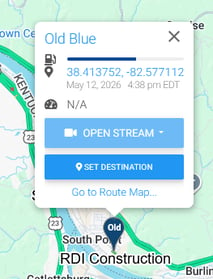
If starting from the BIT web portal dashboard, locate the vehicle on the map and click on its pin to open the details. Click the SET DESTINATION button to open the vehicle's Live Map page.
You can also reach the vehicle's Live Map page by selecting it from the Equipment > Vehicles table, then selecting Live Map from the gray tab bar.
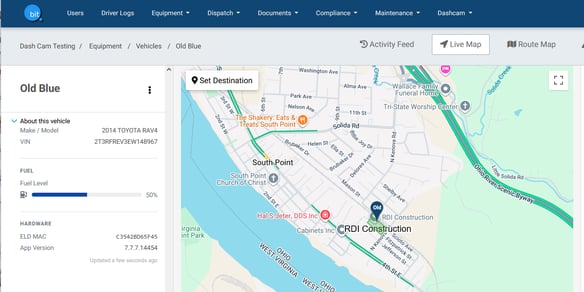
Click the SET DESTINATION button at the top left corner of the map.
In the Set Destination panel, enter the address for your destination, or choose from your saved Locations.
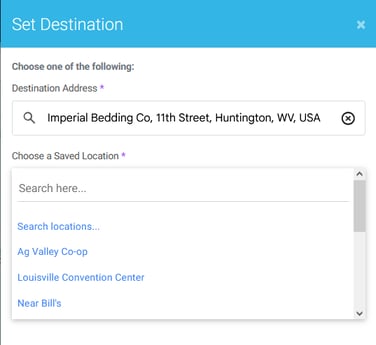
Click the Set Destination button at the bottom of the panel to save it. The map will load with your new destination routed in a blue line, and the destination as a red arrow.
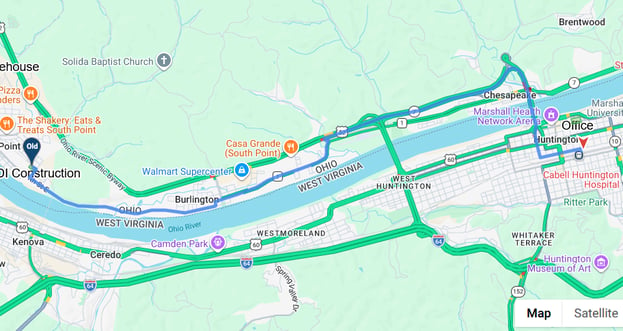
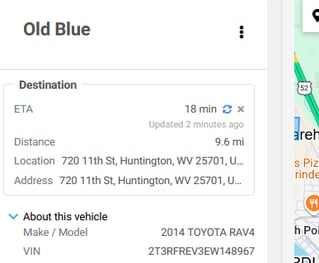
A new Destination box will show in the left panel to display ETA and distance remaining. Click the blue refresh icon to refresh with the newest location data. Click the X to remove the destination.
Set a Reusable Destination
If you enter the same destination more than once, the system will ask if you want to save it to your Locations. It's a good idea to do this, so you can pick it from your Locations list, and track vehicle entry and exit for your records.
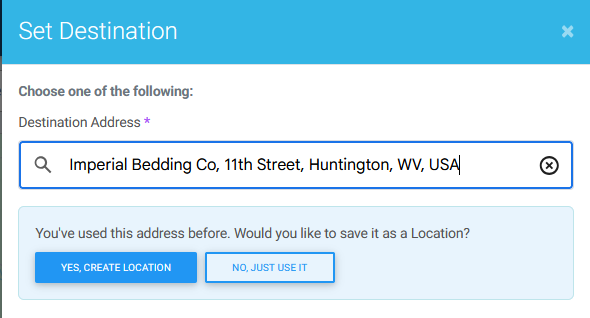
Clicking YES, CREATE LOCATION will open the Location creation panel. You can find those instructions in this article: How to use Locations on the BIT website.
Enable Shipment Tracking
If you would like to be notified when the vehicle reaches its destination, enable the shipment tracking. This tool is just like our Tracking Numbers feature that creates an external live map view that can be shared with anyone who needs to track the truck's location.
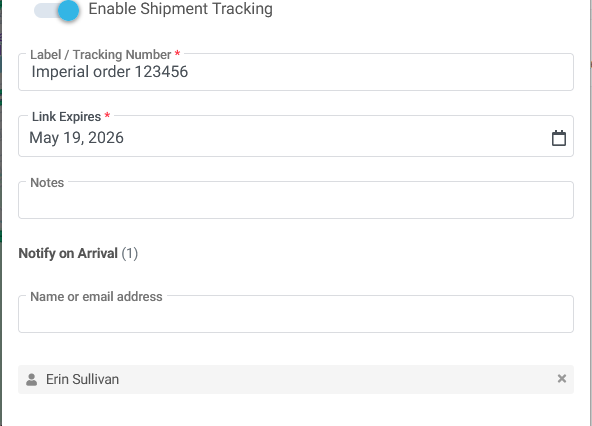
Select internal administrator emails from the email drop down, or type in the email address of any third parties who may want the notification on arrival.
You can also share the Tracking number link to the live map view by navigating to Dispatch > Tracking Numbers and copying the link to share in text or email.
Please note that the Tracking Number map does NOT have the destination set or the ETA calculated. This is to avoid setting wrong expectations when the truck has multiple stops to make and isn't traveling directly to the destination.